If you have an interest in affiliate marketing, one of the first programs you’re likely to apply to join will be through Amazon – because it’s one of the easiest affiliate programs to join and use. Unfortunately, it’s also easy to get kicked out of and you need to understand how to use the Amazon Affiliate program the right way.
Amazon is a highly trusted brand and shopping experience – one that you can make quite a bit of affiliate income with so long as you’re following the rules.
How to use the Amazon Affiliate Program
This blog post will teach you the ins and outs of using the Amazon Affiliate program the right way so that you’re not making mistake that could lead to your account being closed by Amazon.
Why should I become an Amazon Affiliate?
Amazon is a wildly popular online marketplace with a wide variety of products suitable for almost (if not every) blog niche. It stands to reason that due to its popularity, it’s a great affiliate program to apply to join – especially since you already know that it’s a trusted shopping experience that your audience is likely familiar with.
What are the requirements of Amazon’s affiliate program?
Almost anyone can apply and get accepted to Amazon Associates, the Amazon affiliate program. There are a few key things you’ll need to have or be able to do in order to remain an Amazon Associate after your probation period of 180 days:
- You need to own a platform where you can promote links – things like your website, Facebook, etc.
- You must abide by the terms outlining in the operating agreement.
- You need to include the correct wording in your disclosure and on blog posts
- You need to earn 3 qualified sales within 180 days.

But what’s a “qualified sale”?
A qualified Amazon sale is one where your tracking link resulted in a sale being made (and not returned) that Amazon has deemed legitimate. Amazon has strict rules regarding what qualifies, but the big ones to be aware of are that your own purchases through your links, or purchases made by friends and family do not qualify.
How do I get started with the Amazon affiliate program?
You might think that you need lots blog posts or massive amounts of traffic to be considered for Amazon’s affiliate program, but the truth is… almost anyone can become an Amazon Associate for free!
Please do yourself a favor and be as complete and honest as you possibly can when filling out the form. Your honest answers are unlikely to keep you from being accepted into the program. List your website, and all of the social media accounts you plan to use for promoting Amazon affiliate links.
Once you have finished signing up, that’s usually all there is to it – you’re in! Now there are some important things you need to do to your website and be mindful of before you start using affiliate links from Amazon.
Link all of your websites & accounts
When setting up your account, you should have listed all of the websites and social media accounts you’ll be utilizing Amazon links on. But in case you ever add in a new social media platform, or change your domain name, here’s how to link additional sources.
While logged into your Amazon Associates account dashboard, click on your name/email at the top-right of the page. Select “Account Settings” from the dropdown menu.

You’ll be presented with a list of options. You want to choose “Edit your Website and Mobile Apps List”. This is where you will enter the links for all of the pages and websites that you’ll be using to promote affiliate links.

This is a really important step! Do not ignore this, or blow it off until a later time. This is one of many reasons Amazon affiliate accounts get closed – something I will cover more in depth later in this post.
How to properly disclose Amazon affiliate links
No matter what type of affiliate link you are promoting – whether it’s Amazon, or that of another company, you are required to disclose that relationship with a brand. The Federal Trade Commission (FTC) requires that you do this on a website before you share any links that you are being compensated for in some way should a reader click on them and follow through with a qualifying purchase or action.
In addition to disclosing your Amazon affiliate links at the top of every post you promote them in utilizing The Mandatory Amazon Affiliate Disclaimer (see below), you will need to be sure that your Privacy and Disclosure policies are up to date and have the kind of wording Amazon requires.
Make Sure You’re Legal!
Your website’s policies should be written by a lawyer who understands what’s necessary for blogging legally and properly disclaiming. You’re going to love The Contract Shop! They sell a range of disclaimers and other assorted pre-written pages you’ll need for your website.
The Mandatory Amazon Affiliate Disclaimer
Once you have the correct policies, you need to add Amazon’s mandatory wording from Section 5 of the Amazon Associates Operating Agreement.

The agreement says:
“You must clearly state the following, or any substantially similar statement previously allowed under this Agreement, on your Site or any other location where Amazon may authorize your display or other use of Program Content: “As an Amazon Associate I earn from qualifying purchases.” Except for this disclosure, you will not make any public communication with respect to this Agreement or your participation in the Associates Program without our advance written permission. You will not misrepresent or embellish our relationship with you (including by expressing or implying that we support, sponsor, or endorse you), or express or imply any affiliation between us and you or any other person or entity except as expressly permitted by this Agreement.”
If you don’t have this wording, Amazon will remove you from their program. They are quite strict about this. Be sure to include it in your Disclosure policy. You just need to make sure you have added in the phrase “As an Amazon Associate, I earn from qualifying purchases.”
Can I put the disclosure in my sidebar? – NO
I mean, you could do that… but that isn’t enough. The problem with sidebars is that most people are viewing your blog posts from a mobile device. Due to the way mobile devices display your content, the sidebar is something that goes almost completely unnoticed. You would have to scroll far, far down the page to find it.
Your disclosure should be in your Disclaimer policy and at the top of your blog post.
I’m going to just stick it at the bottom of my post. – ALSO NO
Your disclosure needs to come before your blog post and any affiliate links on the page. This is required not just by Amazon, but the FTC as well.
It’s in my footer, so it’s fine. – NOPE.
You could put this information in your footer if you want to, but once again it isn’t where it belongs. Your audience shouldn’t have to search for the disclaimer. It needs to be some place that’s easy to see – clearly displayed before your affiliate links.
I really have to put this at the top of every post? – YES.
Yup. On every blog post in which you promote affiliate links, you need to utilize a disclaimer. If they are Amazon affiliate links, you need to post their mandatory disclaimer. Here’s what mine looks like. You can also scroll back up to the top of the post and see it.

Good grief. Anything else I need to know? – YES.
I know it seems like overkill, but it’s really important that you’re following the rules. The last bit of information you need to know is that your in blog post disclaimer should include a link to your full Disclaimer Policy.
How to use Amazon affiliate links correctly
Phew! You’ve done all the work of making sure that you have all the legal disclaimers in place! It sure would suck to use Amazon’s links incorrectly.
You can get a link from Amazon one of a couple of ways – Either by using Site Stripe, or you can create a link on the Amazon Associates page.
Amazon SiteStripe
I personally find SiteStripe to be the easiest way, because it works across the whole of Amazon and it’s a quick way to get text or image links for any product or page.
To enable this in your Amazon Associates account, while logged into your Amazon Associates account dashboard you’ll click on your name/email at the top-right of the page. Select “Account Settings” from the dropdown menu.
Then you will select “Associates SiteStripe Options” from the menu, and follow through to enable it. Be sure you also ticker “Get Links” and “Share”.

Text Links
Once you have SiteStripe enabled, you’ll be able to use it to grab a text link for any page or even a specific product (this is called deep linking). Once you have found a page you want to promote, you click on “Text” and SiteStripe will provide you with your affiliate link for that page.

Copy this URL and you can use it to create text links in your blog posts, like below…
This particular page leads to the same Logitech Wireless Keyboard + Mouse duo that I use in my office!
Image Links
You cannot save images from Amazon to utilize on your website however you want to. A lot of bloggers do this. Just because you see someone else doing it and getting away with it, doesn’t mean it’s okay.
Instead, be sure to use the provided way of embedding an image that Amazon supplies you with, or take pictures of products yourself if you don’t like the supplied images.
Once you have found the product that you want to promote, click on “Image” in SiteStripe. You’ll receive the HTML code for embedding the image + your affiliate URL into your blog post.
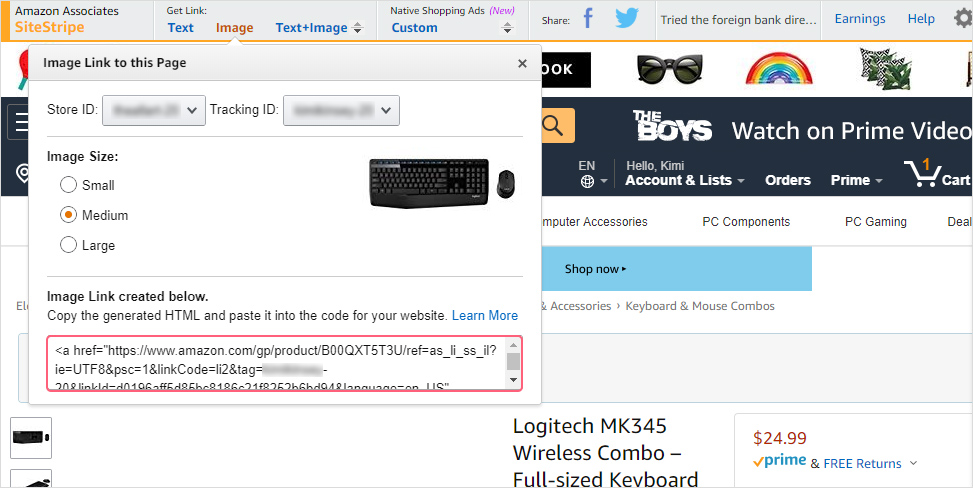
You get to choose what size image you want – Small, Medium, or Large. Copy the code provided and paste it into your website (be sure that you are doing this in Text Mode, or in an HTML ready widget) to display the image.


This is what an embedded Amazon affiliate image can look like. The image is linked and contains your affiliate link. There is no rhyme or reason to the ratio or background color.
Linking to Any Page
It’s not always possible to use SiteStripe link to a product, or maybe you want to link to a specific search result as a way to let the customer compare a certain range of products for themselves. Instead, you will need to go into your Amazon Associates Account, hover over “Product Linking” and select “Link to Any Page”.

You’ll use this page to do a search for an item, and you’ll be presented with a list of items and a way to get a link for them.
Things that will get you kicked out of the Amazon Affiliates Program
Like all affiliate programs, Amazon has some rules. It’s important that you abide by those rules, because if you don’t… your affiliate account will be in jeopardy. But there are mistakes bloggers make beyond the basics like having proper disclosures and using Amazon links correctly.
Here are some things to keep in mind so that you don’t make this grave mistakes and possibly get kicked out of the Amazon Affiliate Program.
Do not add links places that aren’t your website or social media channels
Amazon places a lot of importance on being able to track where exactly clicks are coming from. That’s why they require that you have a proper channel with which to promote their products. That’s going to mean having a website or social media.
Do not put your affiliate links into emails, ebooks (or similar non-trackable freebie), or anywhere that Amazon cannot get to themselves. They cannot crawl these types of formats.
Do not use links in closed Facebook groups
This is yet another instance where Amazon cannot crawl for links. Closed Facebook groups are not public, so Amazon cannot access them.
Do not ask friends and family to use your affiliate links
It maybe sounds silly, because a sale is a sale… right? Amazon doesn’t count sales in which it can find a connection between you and your family or friends. They only want to pay affiliates that they believe are influencing genuine sales. This prevents people from being able to game the system by giving their Aunt Susan money to buy them a flatscreen TV using their affiliate link, and essentially giving themselves a discount on the item.
Do not buy through your own links
For all the same reasons above. Yes, sometimes we make mistakes and maybe you’ve clicked on your link to double check that it’s correct. If you do this, find a blogger you love and want to support and click on a link in their website before making a purchase so that you pick up their cookie instead of your own!
Do not encourage people to click on your links
When I say “encourage”, I am not saying that you cannot use the fabulous strategies that I teach in my Affiliate Marketing for Bloggers course to grab people’s attention. What I mean is, you cannot include statements like “by clicking on my links, you support me”. This is considered encouraging.
Do not use Amazon images in collages
You’re going to see this all. over. Pinterest. You probably think it’s totally fine because you’ve seen it so many times… right? WRONG! You are not allowed to use images from Amazon in any way beyond what they provide – to get the linked image that they allow you to embed on your website.
Make Affiliate Marketing work hard for your blog
The Amazon Affiliate program is one of many out there, and this blog post only scratches the surface of what you should know about monetizing your blog and how to use the Amazon Affiliate program.

My course Affiliate Marketing for Bloggers will help you:
- Figure out what products you should be selling to your audience
- Where (and how!) to place your links for maximum click potential
- Write the kind of content that keeps readers engaged and ready to buy
- Improve your affiliate sales around the holidays
- Establish trust and sell to your audience on repeat
It’s the same strategies I used to take a brand new blog with next to now traffic, and turned it into a money making machine… one that performs well while I binge watch bad TV and snuggle with my dog. You’re gonna be so blow away by what you learn and how easy it really is to find success once you understand the strategies pro bloggers are using.

Don’t forget to Pin it!
If you enjoyed the content of this blog post and found it valuable, please save it to Pinterest so that other people can read it too!
CLICK HERE TO PIN IT


Absolutely awesome, I am so glad I found you and this post. It is easy to understand and easy to implement. Thank you so much.
wow – there’s a lot more that I didn’t know I didn’t know.
Thanks for this!
Wowwww….what a very thorough post. I didn’t know half of these point. Thank you so much for sharing these tips..
xx Menellia
Thank you for this! I was wondering why some recent purchases weren’t showing in my earnings. I didn’t realize that if I emailed my link to others to use- that it wouldn’t work. This was way more helpful than Amazon’s own help section.
Thanks. I’m in the 180 day period and yet to make a sale. Hope I get in next 15 days.